How to Set Up Google Ads Remarketing (Step by Step)

Google Ads remarketing shows ads to people who have already visited your website, used your app or shared their email with you, as they browse Google Search, YouTube, Gmail and the Display Network. You add the Google tag to your site, build audience segments from those visitors, and target them with campaigns designed to bring them back to convert.
If you’re currently running paid advertising or PPC (Pay-Per-Click) campaigns in Google Ads but not taking advantage of remarketing, you’re missing out on an opportunity to boost brand recognition and dramatically increase conversions. Remarketing allows you to target ads at relevant, interesting and much warmer audiences who just need a final push to convert. Businesses often use remarketing to increase the value of website visitors originating from SEO (Search Engine Optimisation) or PPC campaigns . You’ve invested the time and money to get that person to your site and you want them to convert! Remarketing increases the chances of conversion, delivering fast results for a relatively low cost.
In this guide, we’ll take a closer look at what remarketing is, how it can benefit your business and how to set up Google remarketing, step by step: tagging your site, building audiences, launching a campaign and optimising it. We’ll also cover the audience types and compliance requirements that have changed since this guide was first published : Consent Mode V2, Customer Match, Performance Max and Demand Gen.
What Is Remarketing?
Remarketing is a highly targeted method of advertising where ads are shown to people who have already visited your website or otherwise interacted with you. An old marketing rule of thumb, the “Rule of 7“, suggests people need to see a business’s message several times before they act. It isn’t a scientific rule, but the idea behind it holds: few people buy on their first visit, and reminding them of what they looked at gives you another chance to win them back. When remarketing is set up on your pages, anyone who visits those pages can later be shown your ads on the Google Display Network, YouTube, Gmail and Google Search.
How Does Google Ads Remarketing Work?
Remarketing with Google Ads uses a small snippet of code, the Google tag (once called the “remarketing tag”), which can be added to any page or pages on a website. You can then create audience segments for each tagged page, such as “product page [product name] list”, “home page list” and so on. When someone visits your site, provided they meet your set criteria and give permission for you to collect their cookies (tiny text files stored on a user’s browser), their cookie ID will be added to the relevant segment. You’ll see a few different names for these. Google used to call them remarketing lists or user lists. In Google Ads today, they’re “your data segments”, and we’ll call them audience segments in this guide.
Audience segments enable businesses to create highly targeted campaigns. Users who have visited a sign-up page are likely to be closer to converting than those who visited the homepage, for example. A hard-sell ad, offer code or other incentive may work well for the first group, whereas a softer “find out more” ad may get a better response from the second group.
Types of Google Ads Remarketing
There’s more than one way to remarket with Google Ads. Here are the main types, where the ads show and what you need to get started.
| Type | Where ads show | What you need | Best for |
| Standard (website visitors) | Display Network, YouTube, Gmail and Discover, through Demand Gen or Display campaigns | The Google tag on your site | Reminding visitors about your brand and offer |
| Dynamic | Display Network and other Google surfaces, increasingly through Performance Max | The Google tag plus a product or service feed, usually through Google Merchant Center | eCommerce, showing people the exact products they viewed |
| Search (RLSA) | Google Search | The Google tag and an existing Search campaign | Bidding more, or showing different ads, to past visitors who search again |
| Video (YouTube) | YouTube and video partner sites | Your YouTube channel linked to Google Ads | Re-engaging people who watched your videos or visited your channel |
| Customer Match | Search, the Shopping tab, YouTube, Gmail and Display | A customer list you’ve collected yourself, uploaded to Google Ads | Existing customers, subscribers and B2B leads in your CRM |
| App | Google’s app and display inventory | Data collection turned on for your app | Bringing back people who installed or used your app |
Source: Google Ads Help: About your data segments.
How Can Remarketing Benefit My Business?
Targeting an audience that has already shown an interest in your products or services can lead to higher conversion rates and an impressive return on investment (ROI), as this audience is already warm. By targeting ads to consumers with an established interest in buying your product or service, you’ll convert more leads and reduce your cost per acquisition (CPA). Retargeted users are consistently more likely to convert than people seeing your brand for the first time, and retargeting campaigns typically cost 30–60% less per click than cold campaigns, with a CPA that’s 20–40% lower on average.
Every time a consumer sees an ad for a business, the chance that they will take the desired action, be that to subscribe to a newsletter or make a purchase, increases , and so does your brand recognition. Consumers also benefit from effective remarketing, as they are shown only relevant ads for products and services that they’ve expressed interest in.
In short, here’s why your business needs to start remarketing:
- Enhance customer experience
- Increase brand recognition
- Improve your ROI
- Improve your conversion rates
- Personalise and highly target your marketing efforts
Consent Mode V2 and GDPR: The Compliance Requirement for UK Remarketing
Before you build a single remarketing audience, there’s a compliance step that didn’t exist when this guide was first written: Consent Mode V2. Since March 2024, Google has required advertisers to send consent signals, usually through Consent Mode V2, to keep collecting the data needed for remarketing and conversion measurement from visitors in the UK and EEA.
In practical terms, UK and EEA visitors who haven’t consented to ad personalisation won’t be added to your remarketing audiences. Without valid consent signals, your audience segments for those visitors will shrink or stop growing, and your conversion data will become less reliable, even if your Google tag is installed correctly.
Consent Mode V2 works by passing a signal to Google about what a visitor has and hasn’t consented to (via your cookie consent banner), covering four separate signals, including consent for ad data and ad personalisation. Where a visitor declines cookies, Google can still model conversions in aggregate, without tracking that individual, which is what keeps your reporting usable without breaching their choice.
There are two ways to set it up. With basic consent mode, Google tags don’t load at all until a visitor accepts. With advanced consent mode, the tags load but only send cookieless signals until the visitor makes a choice, which gives Google more to model conversions from. Google’s consent mode guide explains both.
Setting this up properly means working with a consent management platform (CMP) that supports Google’s Consent Mode V2 specification, and configuring your tags to respect the signals it sends. This is a task for whoever manages your tagging (often alongside a developer), and it’s worth checking this is in place, and configured correctly, before investing further in remarketing.
Step 1: Install the Google Tag and Link GA4
Your audience segments can only fill up if Google can see who visits your site, so tagging comes first.
- Add the Google tag to every page. In Google Ads, go to the Tools icon, then Data manager, and follow the steps to set up the Google tag. You can paste the code into your site’s header, use Google Tag Manager, or use your website platform’s built-in integration. If you already have a Google tag for GA4, you can use the same one.
- Configure consent mode. Connect your cookie banner to the tag so it sends consent signals, as covered above.
- Link GA4 to Google Ads. In GA4, go to Admin, then Product links, then Google Ads links. Linking lets you share audiences you build in GA4 with Google Ads, and import GA4 conversions. If you haven’t set up GA4 yet, see how to set up GA4.
- Check it’s working. Use Tag Assistant to confirm the tag fires, then check your audience segments in Google Ads start to grow over the next few days.
Step 2: Create a Remarketing Audience in Google Ads
Before you can create your first remarketing campaign in Google Ads, you’ll need to create a website visitors segment.
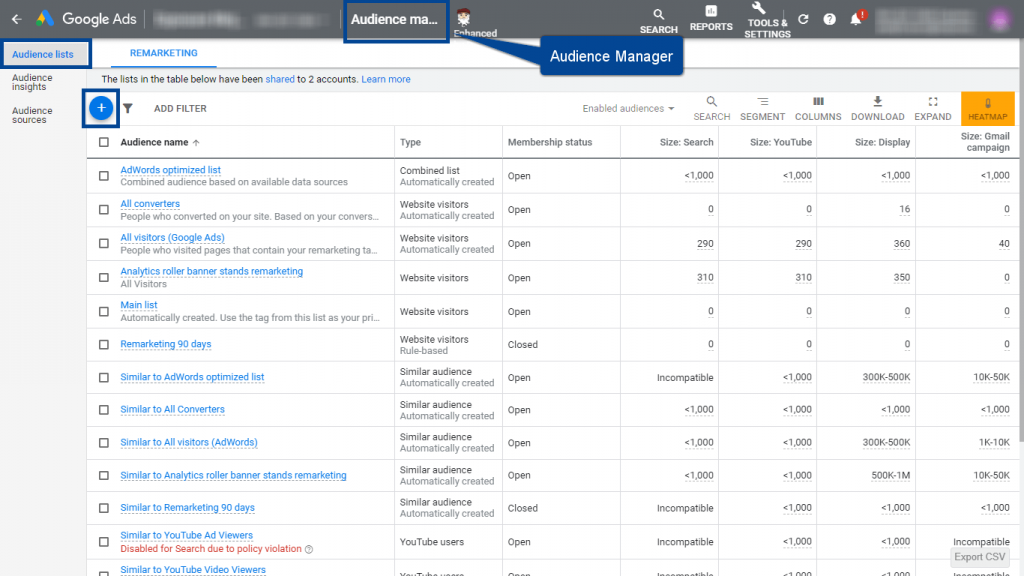
Go to Audience manager
Sign in to Google Ads. From your Google Ads dashboard, click the Tools icon, then “Shared library”, then “Audience manager”. Alternatively, use the search bar and type “Audience manager” to jump there directly.
Audience manager is where you set up your audience segments. From here, you can view any segments you’ve already created, create new ones, and check your data sources, including whether your Google tag is installed.
Start a new website visitors segment
Open the “Your data segments” tab. To add a new segment of people who have visited your website, click the blue “+” button and select “Website visitors”.
Set your segment rules
The page that opens will look like this:
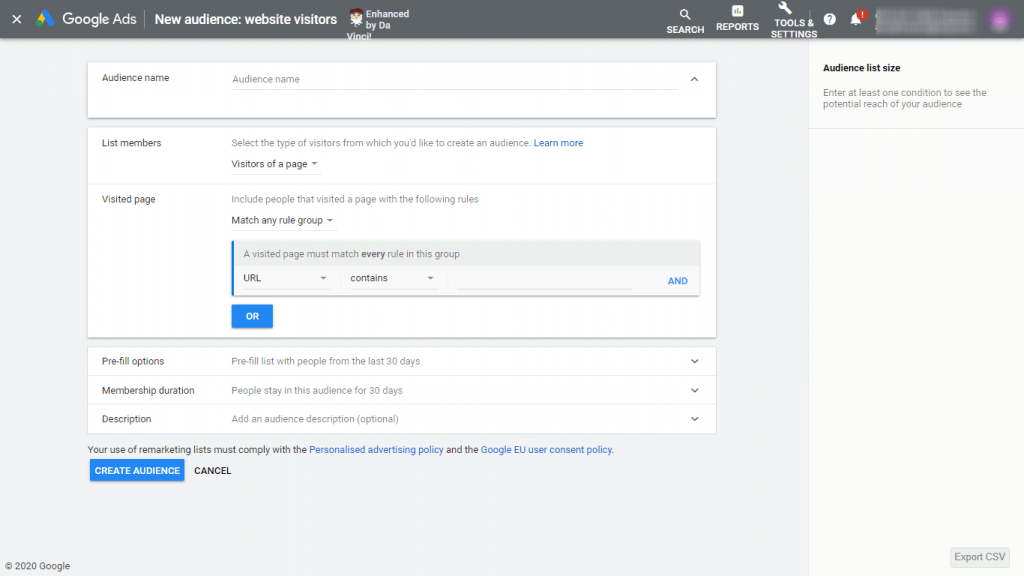
First of all, enter a name for your segment in the “Segment name” field. Some businesses create many different audiences, so make sure that the audience name clearly describes the users it includes. For example, you might create a “Homepage visitors” to include all users who have visited the homepage.
Next, click on the “Segment members” drop-down menu and select a template. You can choose to include any user who visited a specific page or you can set additional criteria, such as “Visitors of a page during specific dates” or “Visitors of a page who visited another page”.
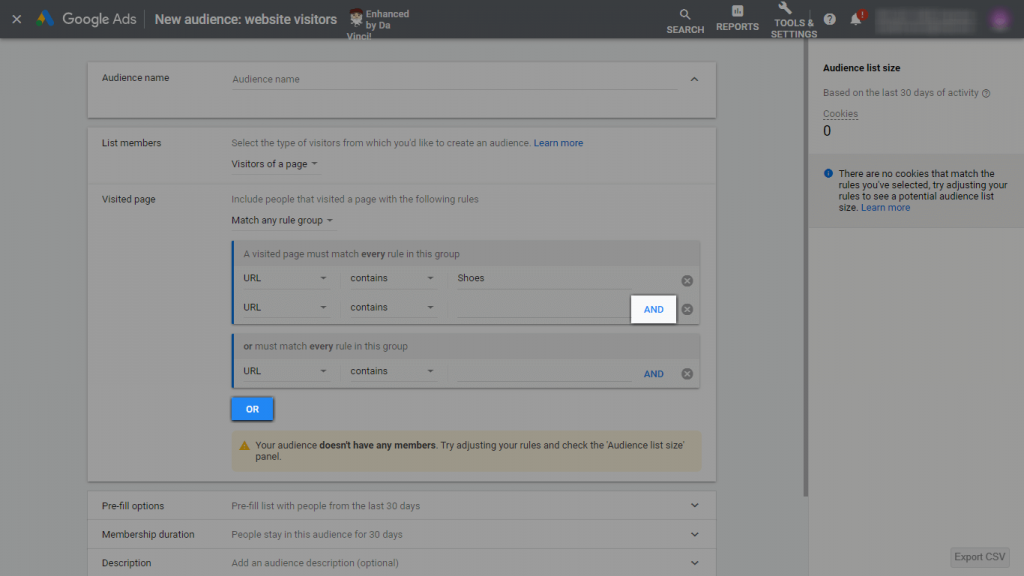
In the “Visited Page” section, you can set rules that will dictate whether a user is added to the segment or not. Choose “Match any rule group” or “Match every rule group” from the drop-down menu and set your rules. You might want to only include pages that contain a certain keyword, for example. Text, numbers or dates can be added to the free text field, and you can create additional and/or rules using the blue buttons.
In the “Initial list size” section, choose to start with an empty segment or include people from the last 30 days.
Finally, enter the number of days you want people to remain on this segment (the membership duration). This is a free text field and you can keep people in each segment for a maximum of 540 days.
If you expect to have a large number of different audiences or several similar audiences with minor differences for specific marketing objectives, it’s a good idea to add a description, although this is optional.
When you’re happy with the new segment, click “Create segment”.
Customer Match: Using First-Party Data for Remarketing in 2026
Website visitor segments aren’t the only way to build a remarketing audience. Customer Match lets you upload your own customer lists directly to Google Ads, so you can show ads specifically to people already in your database across Search, the Shopping tab, YouTube,Gmail and Display.
With third-party cookies becoming less reliable, Customer Match is an important alternative to cookie-based remarketing for any business with an existing customer or subscriber list. You’re targeting people you already have a relationship with, using data you collected directly, which sidesteps a lot of the cookie-consent complexity covered above. It’s a natural fit alongside our email marketing service, if you’re already building a subscriber list.
Check you’re eligible
To use Customer Match, your Google Ads account needs a good history of policy compliance and a good payment history. That lets you use your customer lists for observation and exclusions. To target ads at a customer list directly, your account also needs at least 90 days of history and more than USD 50,000 in total lifetime spend. See Google’s Customer Match policy for the details.
Prepare your file
Only upload data you collected directly from your customers, such as through your website, app or shop, and make sure you have their consent to share it with Google where the law requires it. Save your list as a CSV file with English column headers such as Email, Phone, First name, Surname, Country and Postcode. Include country codes and phone numbers in international format.
Upload and hash your list
In Audience manager, click the “+” button and select “Customer list”. You can upload plain text, in which case Google Ads hashes the personal details on your computer using SHA256 before sending them, or hash the file yourself first. Tick the box to confirm the data complies with Google’s policies, set a membership duration of up to 540 days and select “Upload and create list”. Processing can take up to 48 hours.
Keep it fresh
Customer Match memberships expire after 540 days, and a list needs at least 100 members added or updated in that time to stay eligible. Refresh your list regularly, either by uploading new data or syncing it with your CRM. Source: Google Ads Help: Create a Customer Match list.
Step 3: Launch a Remarketing Campaign
When you’ve set up at least one remarketing audience segment, you’re ready to create the first remarketing campaign for your business. Follow these steps to get started:
Choose a campaign type: Display, Demand Gen or Performance Max
You can run remarketing through three campaign types:
- Display: the traditional home of remarketing, showing image ads across the Google Display Network. Google is moving Display campaigns into Demand Gen. From June 2026, eligible advertisers can migrate existing campaigns, and later new display campaigns will only be created in Demand Gen.
- Demand Gen: image and video ads across YouTube (including Shorts), Discover, Gmail, Maps and the Google Display Network, with control over which of those surfaces you use. This is where most new remarketing campaigns will be built.
- Performance Max: one campaign across all of Google’s channels. Your audience segments act as signals to guide Google’s targeting, rather than a hard limit on who sees your ads.
If you want ads to show only to people in your remarketing segments, use Demand Gen (or Display, while it’s still available). If you want Google to find converting customers wherever they are, with your segments as a starting point, use Performance Max. Source: Google Ads Help: About Demand Gen campaigns.
Set up campaign goals and type
Click “Campaigns”, which can be found on the top left in the menu panel. Click the blue “+” button to create a new campaign. You’ll be presented with a set of goal options, which may look like this:
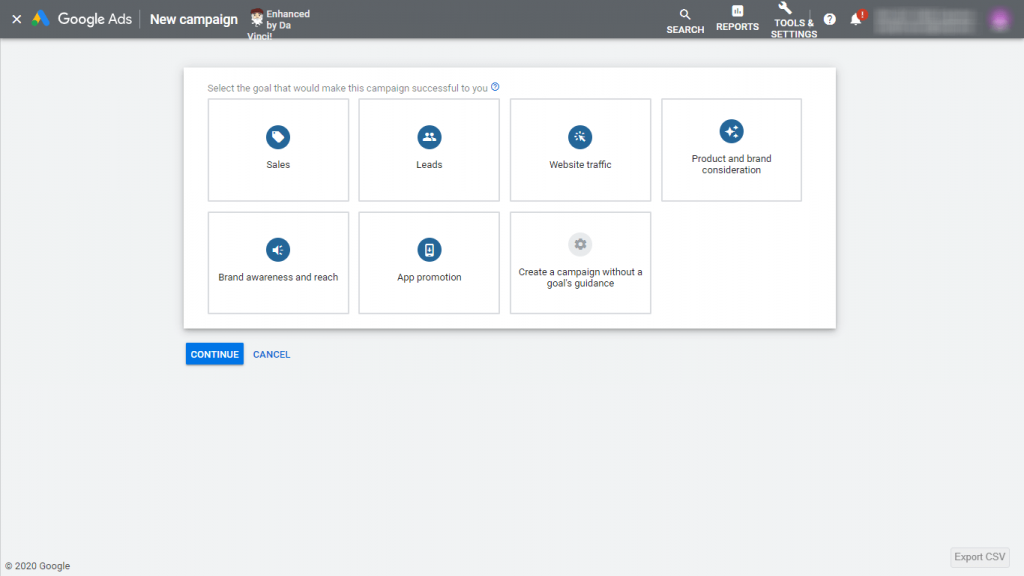
Hover over each box for more detail and choose a goal for your campaign. When you click on a goal, the “Campaign type” section will appear. Select “Demand Gen” (or “Display” if it’s still offered in your account), or “Performance Max”, depending on the choice above.
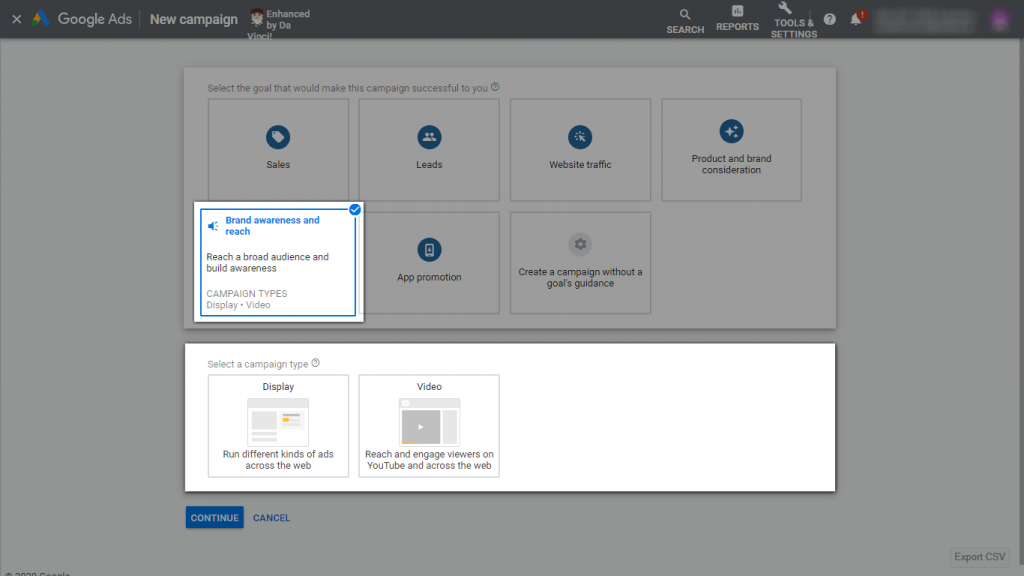
Set your campaign parameters
After clicking the blue “Continue” button on the previous screen, you’ll be taken to the “New campaign” page.
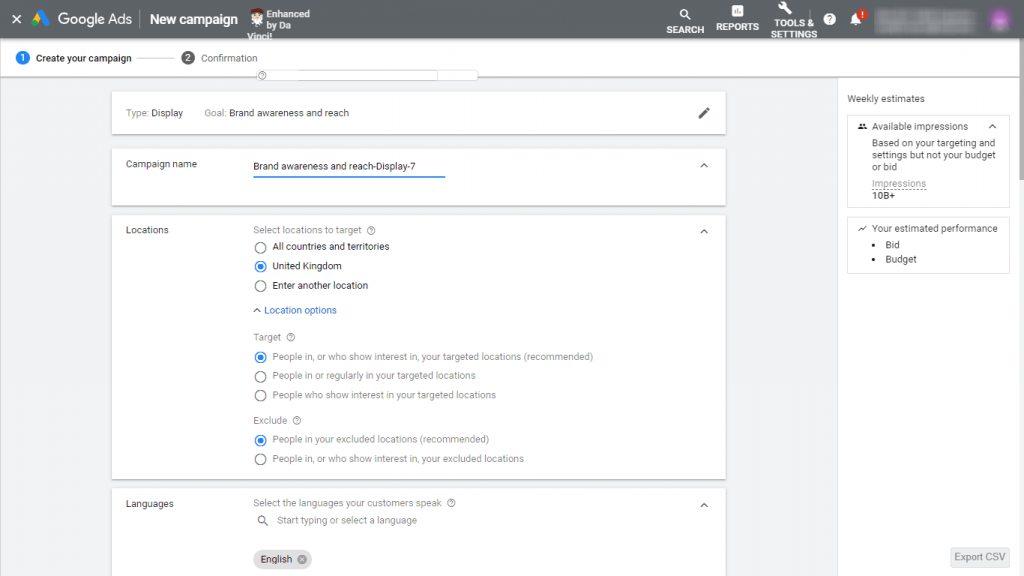
Work through the page completing all required fields, including the campaign name, location and language settings, bid strategy, budget, ad schedule and campaign dates. Click the blue “Additional settings” text for more options, including Content exclusions and Device targeting.
Select your remarketing audience
Now, it’s time to make use of the website visitors segment you created earlier. Scroll down to the segment.
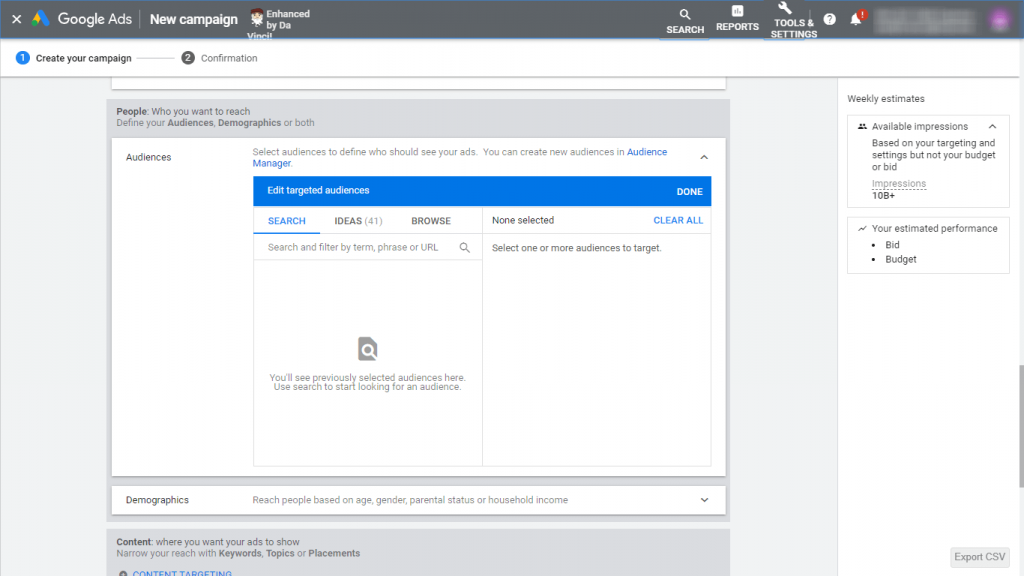
Click “Your data” and check the box next to the segment you’d like to target. Complete the remaining fields (demographics, bids and your ads) and click “Create campaign”.
Congratulations! You’ve successfully set up your first remarketing campaign in Google Ads!
Performance Max and RLSA: Remarketing in the AI-Driven Campaign Era
Two more remarketing formats are worth knowing about alongside standard Display remarketing:
- RLSA (Remarketing Lists for Search Ads) applies your remarketing segments to Search campaigns, not just Display. It doesn’t show banner ads . Instead, it lets you customise search ad campaigns for people who’ve previously visited your site, so you can bid more aggressively on keywords for an audience who’s already warm. Our guide to paid search strategy covers how to fit it into your Search campaigns.
- Performance Max uses audience signals, including your remarketing segments, to inform automated bidding and creative across Google’s full inventory (Search, Display, YouTube, Gmail, Discover, and Maps) from one campaign. Google Ads can also use the data it gathers on visitor behaviour to dynamically create ads that include an image and pricing/description details for your product or service . This Dynamic Remarketing format is that’s increasingly built on Performance Max’s asset groups rather than standalone Display campaigns.
Step 4: Optimise With Frequency Caps and Exclusions
Once your campaign is live, two settings stop remarketing from wasting money or annoying the people you’re trying to win back.
Frequency caps. Seeing the same ad too often can put people off. Where your campaign type offers it, set a frequency cap in the campaign settings to limit how many times one person sees your ads in a day, week or month. Start conservatively, then check whether conversions hold up as you adjust it.
Exclusions. Exclude people who’ve already done what you want, such as buying or booking, by adding a segment of converters as an exclusion. Exclude very short visits too, such as people who left within a few seconds, as they were rarely interested in the first place. And if you run several remarketing campaigns, use exclusions so each person only sees the message meant for their stage.
Membership duration. Match how long people stay in a segment to your sales cycle. A few days to a few weeks suits a quick online purchase, while B2B services with long decision times can justify months.
What Next? How to Use Google Ads Remarketing Effectively
You’re up and running and know the basics of Google Ads remarketing, but what makes an effective campaign? Check out our top tips for getting the most out of your remarketing campaign.
- Set a Clear Goal: Remarketing is a different beast to traditional PPC and you should adjust your expectations accordingly. The strength of a remarketing campaign is its ability to build brand recognition and increase the likelihood of a website visitor converting at some point by repeatedly exposing them to your ads. This type of campaign is unlikely to return a huge number of one-click conversions or large volumes of website traffic.
- Plan Your Strategy with Care: Before ploughing ahead and creating a campaign, consider your goals and the segments you need to build to achieve them. Google offers a useful guide outlining 21 strategies for better remarketing, which provides some great ideas to get you started.
- Add UTM Codes at Campaign Level: Urchin Tracking Module (UTM) codes form part of a website’s URL (Uniform Resource Locator) and are used by Google to track activity associated with a particular link. UTMs make it easy to identify which marketing activity resulted in a conversion. Add UTM codes at the campaign level in Google Ads and you’ll save yourself hours adding them manually for each ad URL.
- Get Your Consent Setup Right, Not Just Your Privacy Policy: A privacy policy alone isn’t enough in 2026 . See the Consent Mode V2 section above. Google requires an active consent signal, not just a written disclosure, to keep remarketing data flowing for UK/EEA visitors.
- Use Exclude Lists to Manage your Budget: If budget is an issue, you must consider the users who should be excluded from your remarketing campaigns. If your goal is to get people to subscribe to a particular service, once they have completed this action, you should exclude them from future remarketing campaigns to avoid wasting money on serving them further ads encouraging them to complete the same action. See Step 4 above for more on exclusions.
- Give Dynamic Remarketing a Try (Now Largely via Performance Max): as covered above, dynamic ad creation is increasingly delivered through Performance Max’s asset groups rather than a standalone Display format, but the principle is the same : Google auto-generates ads with your product image, price, and description for people who’ve already shown interest. eCommerce stores get the biggest benefit here, but it’s useful for any business with a product or service catalogue.
- Use Google Analytics Metrics to Create Remarketing Audiences: If you’re not sure what Google Analytics can do here, it’s a lot. Once GA4 is linked to Google Ads (see Step 1), you can build audiences in GA4 based on almost any behaviour, such as people who viewed three or more pages or started but didn’t finish a form, and share them with Google Ads for remarketing. Our analytics service covers setting up GA4 audiences and conversion tracking properly, which is what makes this kind of remarketing data reliable in the first place.
[us_page_block id=”12704″ remove_rows=”1″]
Any business can benefit from remarketing with Google Ads. It’s a relatively low-cost way to increase conversion rates and improve your return on investment. Customers will thank you for serving ads that are relevant to them and you’ll see brand recognition grow as consumers are repeatedly exposed to your ads.
Want help making your PPC campaigns more profitable? Find out how our PPC management services and Google Ads management can help, or request a free search visibility review to see where you stand in Google and AI search, and the opportunities to focus on first.
Google Ads Remarketing FAQs
What is the difference between remarketing and retargeting?
The terms are used interchangeably in most marketing contexts, including by Google. Some practitioners use “retargeting” specifically for on-platform/social ads and “remarketing” for Google Ads and email, but there’s no formal distinction . Both mean showing ads to people who’ve already interacted with your business.
How much does Google Ads remarketing cost?
There’s no fixed price. You set your own budget and bids, and what you pay depends on your industry, audience size and campaign type. Because remarketing audiences are smaller and already know your brand, total spend is often lower than for prospecting campaigns, but judge it on cost per acquisition rather than cost per click.
Does Google Ads remarketing work for B2B?
Yes. B2B sales cycles are often longer and involve multiple stakeholders, which makes staying visible to warm prospects particularly valuable. Customer Match (covered above) is especially useful for B2B, since it lets you build audiences directly from your CRM or email list rather than relying solely on website visits.
What is Consent Mode V2 and why does it matter for remarketing?
Consent Mode V2 is Google’s framework for passing cookie consent signals to Google Ads and Analytics. Google has required consent signals to keep collecting remarketing and measurement data from UK and EEA visitors. Without them, visitors who haven’t consented won’t be added to your remarketing audiences, so those segments shrink or stop growing. See the dedicated section above for more detail, and speak to your developer or CMP provider about your specific setup.
What is RLSA in Google Ads?
RLSA (Remarketing Lists for Search Ads) lets you apply your remarketing audiences to Search campaigns rather than just Display. It means you can bid more aggressively, or show different ad copy, to people searching who have already visited your site.