How to Track AI Traffic in GA4: Step-by-Step Guide


Learn how to track AI traffic in GA4 and see which platforms drive clicks to your site. This step-by-step guide shows you how to segment AI traffic and track conversions using tools like ChatGPT and Perplexity.
AI Search traffic to your website might still look small in your dashboard, but the conversion data tells a very different story:
- According to Contentsquare, AI-referred traffic in financial services has grown from 0.03% to 0.13% of all traffic in just one year.
- Ahrefs reported that 12.1% of their signups came from AI Search, despite AI Search contributing just 0.5% of their total traffic.
- Apollo found that AI-referred traffic converts four to five times better than Google, with an average conversion rate of 14.2%.
Tim Cameron-Kitchen, Founder of Exposure Ninja, states, “Whilst AI traffic to your website might still be relatively small, it can be very high intent and very good quality.”
Despite this being high-intent traffic, most businesses aren’t tracking it at all in Google Analytics 4 (GA4).
Tim Cameron-Kitchen walks through exactly how to track AI traffic in GA4, including a quick-view method and a longer-term setup that keeps AI traffic visible in every report automatically.
What Is AI-Generated Traffic?
AI-generated traffic is traffic that comes directly from an AI platform. This happens when:
- A user asks a question in an AI platform like ChatGPT, Perplexity, or Gemini.
- The AI platform provides a summarised answer and cites your website as a source.
- The user clicks the citation link and lands directly on your site.
The most common AI tools that generate website traffic include:
- ChatGPT (chatgpt.com)
- Perplexity (perplexity.ai)
- Gemini (gemini.google.com)
- Microsoft Copilot (copilot.microsoft.com).
“ChatGPT is usually the biggest referrer by a long way,” says Andrew Tuxford, Head of SEO at Exposure Ninja. “Perplexity and Gemini follow, depending on the business. You might get some of the others, but they tend to be rarer and more inconsistent.”
These platforms often appear in GA4 as referral sources, and they’re relatively easy to spot once you know what to look for.
But there’s also indirect AI traffic. For instance, a user sees your brand mentioned in Perplexity but doesn’t click. Later, the user will Google your name and find you through the search. In GA4, that shows up as organic or direct, even though the AI platform did the heavy lifting.
Both types of traffic are valuable, but only direct AI traffic, the clicks that pass referrer data, can be cleanly tracked in GA4.
Getting clicks to your website is only one of the ways that you can get traffic from AI tools. Let’s say, for example, that someone’s using AI Mode, they’ve asked, “Who are the best heat pump installers in the UK?” and they see Elite Renewables. Well, they might then go to Google and search for Elite Renewables. When we see that traffic coming through to our website, it will just look like organic traffic. It won’t look like AI traffic. So there is a bit of a black box to AI, which means you can’t track every single click.
 Tim Cameron-Kitchen
Founder
Tim Cameron-Kitchen
Founder
Why Track AI Traffic in GA4?
Most marketers are already monitoring key traffic sources like Organic Search, Paid Media, and Referrals. But if tools like ChatGPT, Perplexity, and Copilot refer high-intent users to your site, you need to know about it to act on it.
“The benefits of tracking AI traffic are the same as any other channel: you know where your traffic’s coming from, you know what’s working, and you can make smarter decisions,” explains Andrew Tuxford.
By tracking AI traffic and conversions in GA4, you can:
- See if your AI Search Optimisation strategy is delivering results.
- Spot which AI platforms are driving actual clicks.
- Identify high-performing content that’s being cited.
- Track performance over time as your visibility grows.
- Compare conversion rates with other traffic sources.
Without a clear setup, this traffic gets buried in the generic Referral group. That means you’re missing opportunities to see what’s working and how to scale it.
How AI traffic evolves over the next few months really depends on what Google does with AI Mode. But assuming there are no major changes, I’d expect AI-driven traffic to continue growing as these platforms gain popularity. That’s why it’s important to start treating AI as a dedicated marketing channel. If you’re not actively addressing it, you risk falling behind as it takes a larger share of user attention.
 Andrew Tuxford
Head of SEO
Andrew Tuxford
Head of SEO
Tracking AI Traffic in GA4: The Quick Way
Step 1: Open the Traffic Acquisition Report
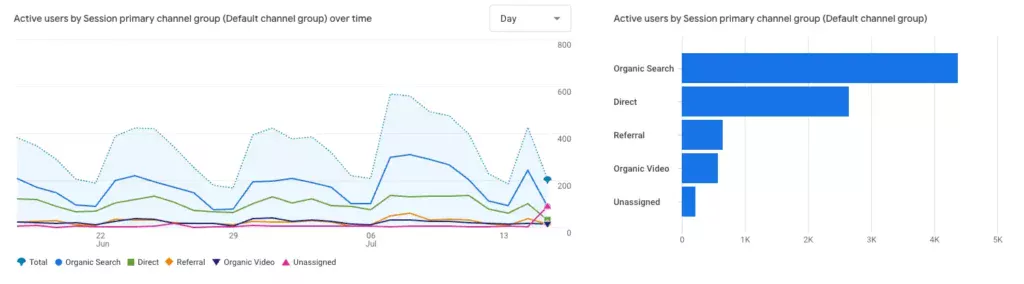
Go to Reports > Life cycle > Acquisition > Traffic acquisition.
This report shows how users arrive at your site, by default grouped into primary channels like Organic Search, Direct, and Paid.
Step 2: Filter to See Referral Traffic Only
Click Add filter.
Set:
- Dimension: Session Primary Channel Group
- Match Type: Exactly matches
- Value: Referral
- Click Apply.
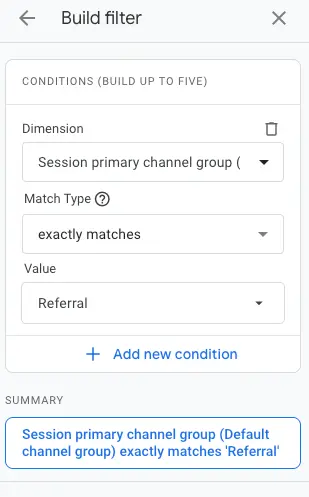
This clears out all other channels and isolates referral-based traffic. “You don’t have to filter, but it makes the data easier to read. You’re focusing just on referral clicks, which is where AI visits typically sit,” explains Andrew Tuxford.
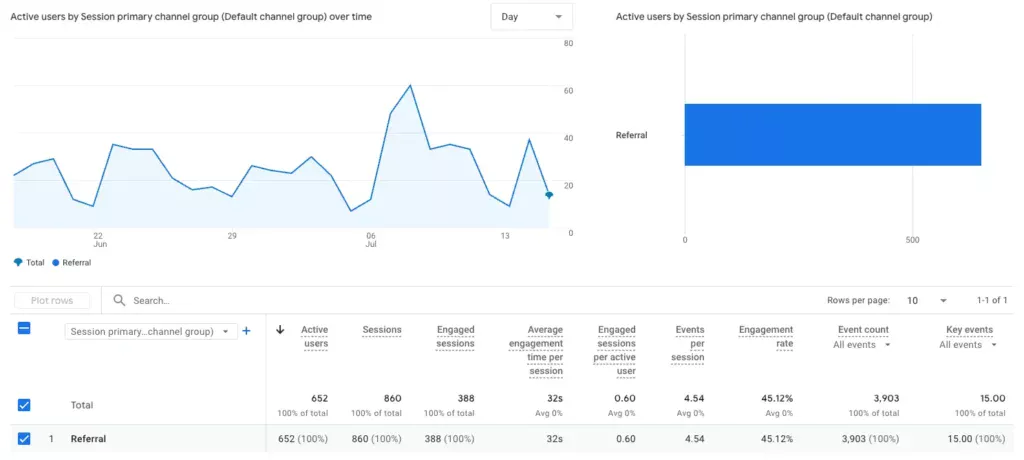
Step 3: Add Session Source to See the Referring Platform
Click the “+” symbol on your table and add Session source.
You’ll now see AI traffic sources like:
Now you can see where your AI referral traffic comes from.

How to Create a Custom Channel Group for AI Traffic
Tim Cameron-Kitchen shares “the long-term way where you don’t have to click filters and buttons each time you wanna see that traffic.”
Here’s how to build your own custom channel group:
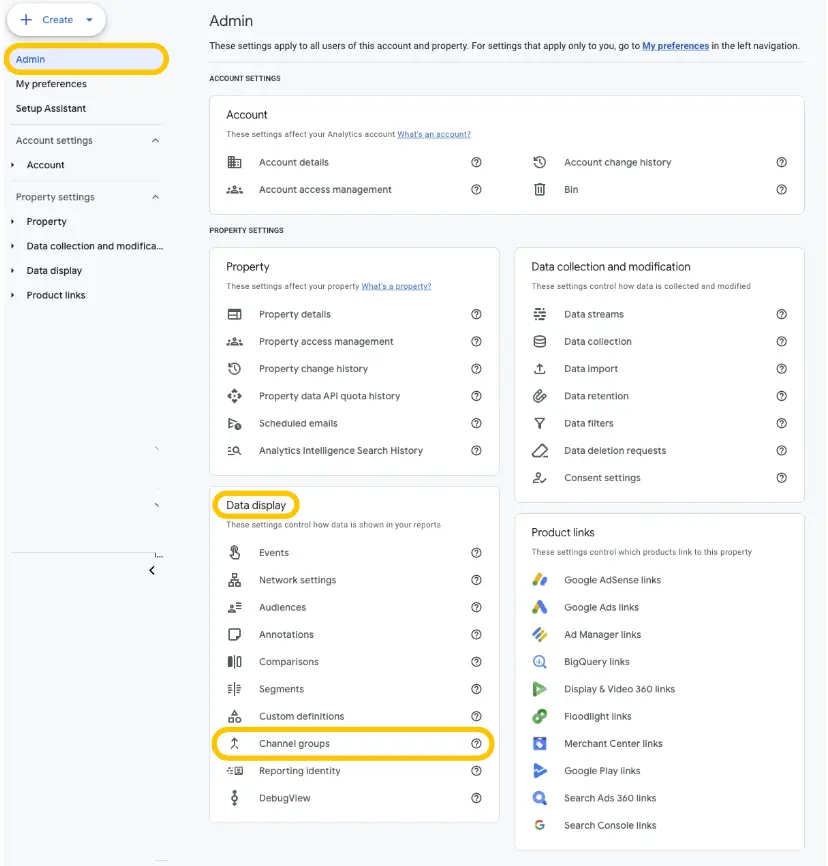
Step 1: Go to Admin > Data Display > Channel Groups
Click Admin in the left menu, then go to Channel Groups under Data Display.
Step 2: Click “Create New Channel Group”
Give it a name like AI Platform Traffic. Add a short description so your team knows what this is for.
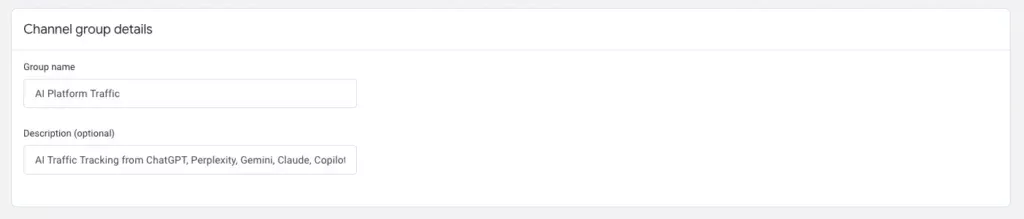
Step 3: Add a New Channel
When you create a new channel group, it will copy the default group list. You need to click Add new channel and name it something like “AI Referrals.”
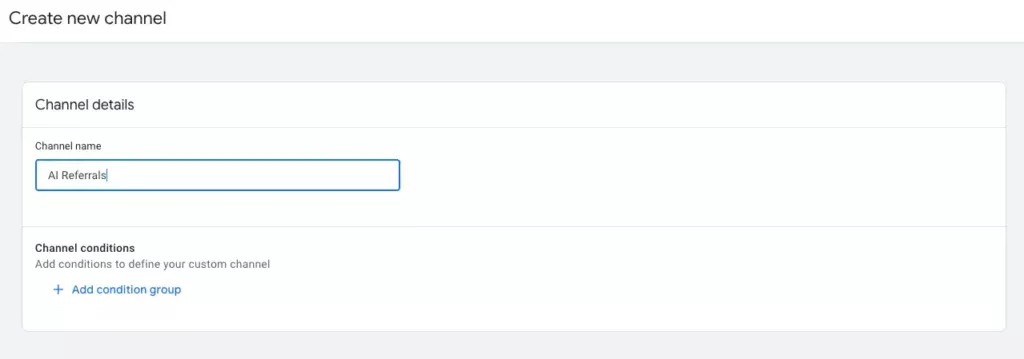
Step 4: Define the Rules
You’ll now define the conditions that assign traffic to this group.
Set these conditions:
- Select Add new condition > Source > matches exactly (=) > chatgpt.com
- OR Select Add new condition > Source > matches exactly (=) > perplexity.ai
- OR Select Add new condition > Source > matches exactly (=) > gemini.google.com
- OR Select Add new condition > Source > matches exactly (=) > copilot.microsoft.com.
You can add as many “OR” rules as needed, and then click Save channel.
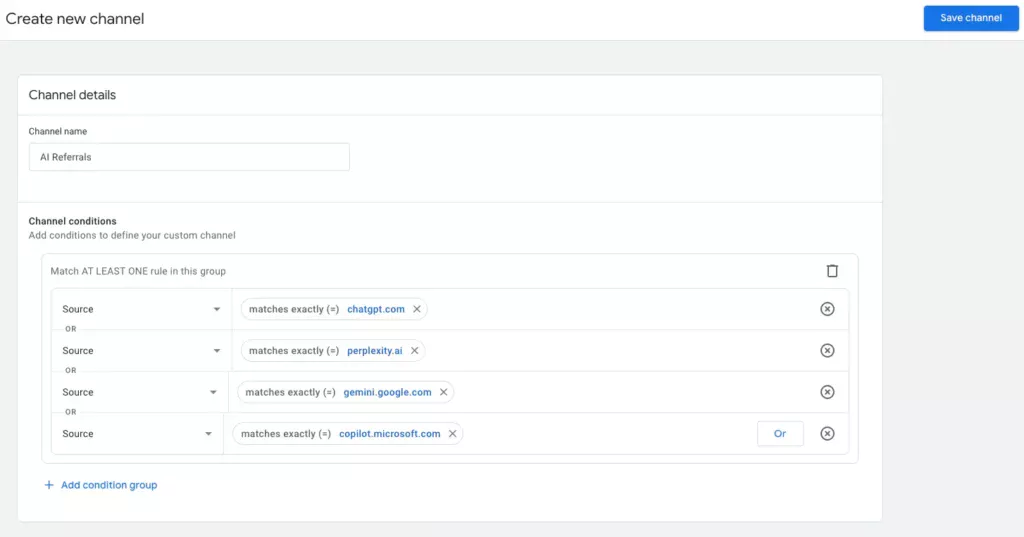
“Remember to keep your list updated. If a new platform starts sending traffic and you haven’t added it, GA4 won’t track it in your AI channel,” adds Andrew Tuxford.
Step 5: Reorder the Channels
You’ll see your new AI Referrals channel at the bottom of your default group list.
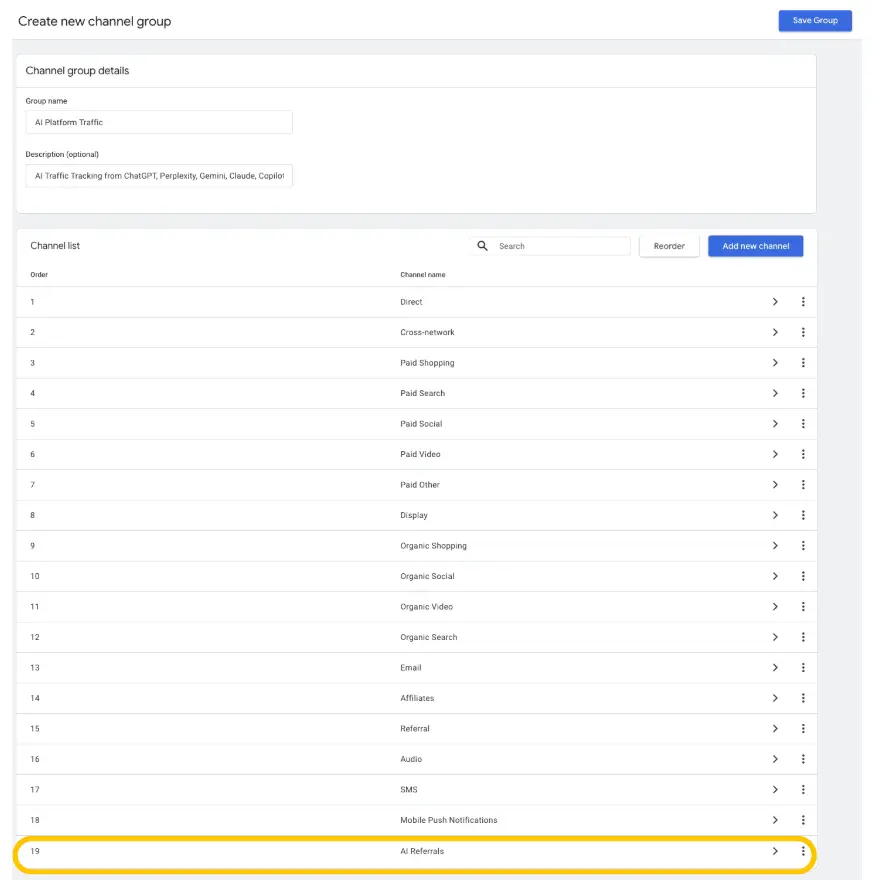
You then need to move it above Referral. GA4 assigns traffic to the first matching rule, so if “Referral” appears before your AI rule, your AI traffic won’t get bucketed correctly.
Click Reorder, then drag and drop your AI channel anywhere above Referral. You can now click Save group.

Step 6: (Optional) Make It Your Default
You can make your new custom group the default view for all traffic reports. This way, AI traffic will always be visible in your traffic acquisition reports.
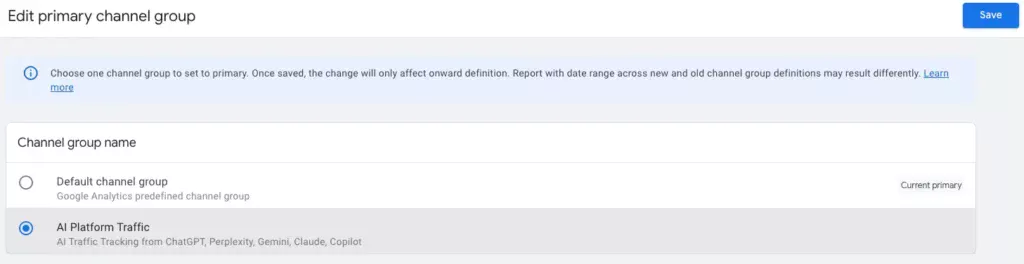
In Channel groups, click Edit primary channel group. Simply select your new group as the primary channel group and hit Save.
If there’s one thing I’d love Google to change in GA4, it’s to create a default channel for AI traffic just like they have for Referral, Direct, and Paid. Right now, we have to set it up manually and constantly maintain it as new AI sources emerge. But if AI is important enough that everyone should be tracking it, then Google should just handle it by default.
Andrew Tuxford
Head of SEO
Tracking AI Conversions in GA4
It’s not enough to just track traffic. What matters is whether that traffic converts.
“Traffic without conversions is kind of meaningless. You want traffic to your website so that users can buy your services or products. So getting a load of traffic from AI platforms that doesn’t convert isn’t helping you reach your goals,” explains Andrew Tuxford.
Luckily, once your AI channel group is set up, tracking conversions is simple.
- Go to Reports > Life cycle > Acquisition > Traffic acquisition.
- Filter by Referral (or use your custom AI Platform Traffic channel group).
- Add Session source to break conversions down by platform.
- View Event count (or filter by a specific conversion event).
You’ll now be able to see which AI platforms are driving meaningful actions on your website, not just visits. This data can help you prioritise which tools to optimise for and where to invest further in AI visibility.
How Do You Track AI Overview Traffic in GA4?
Unfortunately, you can’t directly track traffic from Google’s AI Overviews in GA4.
“AI Overviews are still part of the search results, so they show up as organic traffic,” explains Andrew Tuxford. “There’s no referrer passed, and no way to tie a specific session back to an AI Overview click.”
You can still get directional insights using tools like Semrush or SE Ranking. “If you’re tracking keywords and one of them holds the AI Overview, those tools will flag it,” says Andrew Tuxford. “So while GA4 can’t show you the traffic source, these tools give you a solid idea of which pages are gaining visibility through AI Overviews and whether that visibility aligns with increases in organic traffic or conversions.”
Treat AI Overviews the way you would a Featured Snippet. You can’t see the click source, but you can connect the dots between rankings, AI placement, and downstream results.
Our advice is to track both traffic and your AI visibility. You wanna keep an eye on both of them. The AI traffic is gonna show you those referrals. The AI visibility is gonna show you how prominent you are, and you can use one of the tools that we love working with, like Semrush One, Peec.AI, or Profound, to do this.
Tim Cameron-Kitchen
Founder
Boost Your AI Referral Traffic
Before you can track your AI traffic, you need to be visible in AI Search.
At Exposure Ninja, we help brands build tailored AI Search Strategies that go beyond traditional Search Engine Optimisation (SEO). We’ll assess how your brand currently appears across AI platforms and compare that visibility against your key competitors. Then we turn those insights into a clear, actionable roadmap to get your website cited, recommended, and clicked.
The great thing about AI Search is that it’s much more responsive and quicker to adjust than Google is. For example, we recently implemented an AI Search Strategy for one of our clients. They already had strong AI visibility, but a recurring issue kept showing up: platforms like ChatGPT consistently described them as “expensive.”
Following our AI Search audit, the client made a strategic pricing adjustment. Within just six weeks, the negative sentiment was gone. Unlike Google, where changes take time to reflect in rankings, AI platforms respond quickly to updates. This means with the right strategy in place, you can rapidly improve how your brand is represented and start driving more high-quality traffic from AI.
Ready to boost your AI visibility? Request a callback, and we’ll show you exactly where your brand stands in AI Search and how to get it showing up more, in all the right places.
FAQs
How do I see ChatGPT traffic in GA4?
Go to Reports > Life cycle > Acquisition > Traffic acquisition. Isolate Referral traffic. Use a Session source filter and search for chatgpt.com.
How often should I check for AI traffic?
“You should be tracking your AI traffic at least monthly. But if AI Search Optimisation is a major part of your marketing mix, check it more regularly,” recommends Andrew Tuxford.
Should I build a separate AI dashboard in GA4?
It depends. If AI is important to your growth strategy, a dedicated dashboard makes monitoring performance and conversions at a glance easier.
Is all traffic from unknown sources from AI?
No. “Unknown traffic just means the referrer was lost, blocked, or never passed in the first place,” explains Andrew Tuxford. “It could be from an AI tool, but it could just as easily be someone using a browser with strict privacy settings.”
“As a general rule of thumb,” Andrew Tuxford adds, “assume your unknown traffic follows a similar distribution to your known traffic. So if 60% of your tracked traffic is organic, it’s reasonable to assume a similar split applies to the unknown portion too.”