
How to Get More Google Reviews (and Use Them to Rank Locally)

Your Google reviews are often the first thing people see about your business, before they’ve visited your website or picked up the phone.
They help you get found too. Google says more reviews and positive ratings can help your business’s local ranking.
Happy customers rarely go looking for your profile on their own, though. In our experience, the businesses that collect reviews steadily are the ones that ask every customer, and make it easy.
This guide shows you how to get more Google reviews the right way: where to find your review link and QR code, when to ask, copy-and-paste templates for email, SMS, WhatsApp and in person, how to reply to good and bad reviews, and the UK rules you need to follow.
Do Google Reviews Help SEO?
Yes, Google reviews help local SEO.
Google’s guide to improving your local ranking says local results are based on relevance, distance and prominence. Prominence is how well known your business is, and how many reviews you have is part of it.
Reviews won’t outweigh the other two. A plumber with 300 reviews still won’t appear for a search made 40 miles away, or for a service they don’t offer. That’s why reviews work best as one part of a wider local SEO plan, alongside a well-optimised profile and a website that matches what people search for.
Google reviews is a feature that allows customers to rate and comment on the service and product of a particular business. Stars are given out of five and these reviews are clearly visible when your business is researched, or when customers perform a general search for businesses such as yours in your local area.
You will likely have seen Google reviews many times before when searching for your own services, whether it be “emergency plumber” or “chartered accountancy firm”. When you do, they’ll look one of two ways:
Version One
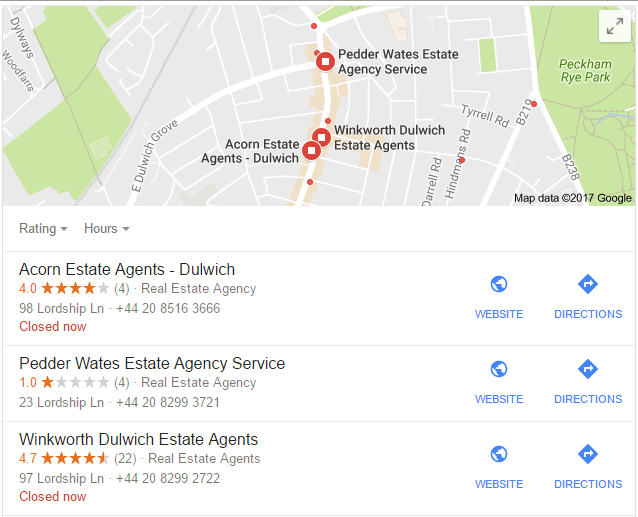
Version Two

Each version aims to encourage viewers to click on results based on the quality of reviews and the number of high ratings it has featured.
Reviews also do a second job: they help people choose you once they’ve found you.
In BrightLocal’s 2026 Local Consumer Review Survey, 97% of consumers said they read reviews for local businesses, and 74% look for reviews written in the last three months.
That second figure is the one to act on. A steady flow of new reviews counts for more than a big total collected years ago.
In our experience as an SEO agency, reviews are one of the most overlooked parts of local search. Plenty of businesses have claimed their profile, but few have a routine for asking every customer.
For a personal injury law firm with offices in McAllen and San Antonio, we optimised and regularly maintained the firm’s Google Business Profile and introduced ethical review generation, alongside a website rebuild and content work. That helped the firm regain and maintain top three map pack positions in both locations.
How to Get Your Google Review Link and QR Code
The tool for managing how your business appears in Google’s search results pages is called Google Business Profile. If you haven’t already claimed your business using the free service, we strongly advise you do so immediately.
Your Business Profile allows you to alter the details of the business listing (such as the address, website, opening hours, contact details, etc.). More importantly, though, it allows you to manage the reviews your business earns. It also enables you to reply to them.
By reviewing and replying to all submitted reviews, you’ll be able to create a strong, trustworthy customer service impression before the potential customer has even seen your website. Google Business Profile is free and incredibly intuitive, but if you require any further assistance, our dedicated SEO team are happy to help and advise.
Once you are able to manage how your business appears, the next step is to get your review link.
Get Your Review Link
Google gives every Business Profile its own review link, which takes customers straight to the place to leave a review:
- Go to your Business Profile (search for your business name on Google while signed in to the account that manages it).
- Select Read reviews, then Get more reviews.
- Copy the link with the copy icon, or use the share options to send it straight from there.
Save the link somewhere your whole team can find it. You’ll use it in every template below.
Get Your Review QR Code
The Get more reviews screen also shows a QR code. Right-click it and choose Save image as to download it.
Google only creates the QR code in a computer browser, not on mobile, so do this step on a laptop or desktop.
Print it on receipts, invoices, counter cards, packaging or the back of a business card, anywhere a customer has their phone in hand.
If you’d rather build a link yourself, the free Whitespark Google review link generator is an alternative.
Check any old short links. Google switched off goo.gl links that weren’t in active use after 25 August 2025, so test any goo.gl review link in an old email template or printed card, and replace it with your current link from Google.
When and How to Ask for a Google Review
Leaving a review rarely crosses a customer’s mind unless something prompts them. As a result, building up your Google reviews can be a long and frustrating process. However, if we’re honest with ourselves, we’re all guilty of this behaviour. Consider for a second: do you remember the last time you left a review for a company?
Directly asking your customers to review your business after you’ve delivered the product or service they’ve paid for is perfectly acceptable. It doesn’t breach Google’s review policy (as long as you don’t offer anything in return), therefore it’s not going against the system. It’s merely using the tools at hand to help make your business a success. If your service is fresh in someone’s mind just after they’ve become a customer, what better (or fairer) time is there to ask for a review?
The best way to increase your reviews is to ask for them.
In our experience, sending out a post-purchase delivery email is a reliable place to start for increasing the review total for two reasons:
- Anyone reading their email is already online, meaning they’re only a click away from leaving a review.
- Customers asked straight after delivery, while the experience is fresh, are more likely to leave a detailed review.
When asking for a review, remember that everyone’s time is precious. The email needs to be short and to-the-point so that the customer can action it and quickly get back to what they were doing.
When to Ask
Tie the request to a moment, not a mood. Pick one clear trigger and ask every customer who reaches it:
- Online Orders: About three days after delivery, once they’ve had a chance to use what they bought.
- One-Off Jobs and Appointments: The same day or the day after the work is finished and signed off.
- Ongoing Services and Software: After onboarding, usually about a month in, once they’ve seen what you do.
Ask everyone who hits the trigger, not just the customers you expect to be happiest. Choosing who to ask based on how you think they’ll review is review gating, and Google and UK law both treat it as a problem.
Which Channels to Use
Email is the easiest to automate, but it shouldn’t be the only place you ask:
- Email: Best for most businesses, because it can go out automatically on your trigger.
- SMS and WhatsApp: Good for trades, appointments and anyone you already text, because the link opens straight on their phone.
- In Person: The most personal ask, at the counter, at the end of a job or after a meeting, with a card or QR code to hand.
- Printed Cards, Receipts and Invoices: A QR code with one line of copy, for customers who’d rather do it later.
- Your Website and Email Signature: A “Review us on Google” link on your thank-you page and in your team’s signatures.
Some customers don’t have a Google account, so it’s worth collecting reviews on a second platform too (such as Trustpilot or Feefo) and asking in more than one place.
If a review request also promotes offers or other products, it becomes marketing, and PECR consent rules apply. Keep it about their experience.
Google Review Request Templates
Copy these, swap in your own details and tone of voice, and add your review link where it says [your review link].
Who Should Send the Review Request Email?
If you’re already managing your own company’s email marketing, you’ll be required to bring this new email into your regular email process. Start by writing a template that you can copy and send to each new customer. Better still, set it up as one of your automated review request emails so it goes out on the same trigger every time.
If you have someone else in your company, or contracted externally, to handle your email marketing, then pass this document through to them. Ensure the process is put into immediate action within 48 hours.
Not currently employing someone to handle your email marketing? Finding the increasing level of work for email marketing to be filling up your already packed agenda? You can hire experienced email marketing professionals to take charge of your email marketing with a strategy and process of your choosing.
In the next section, we’ll share what needs to be included in the email you send, plus a template email for you to use as inspiration for your own email.
What to Include in the Review Request Email
Within the email, you’ll need to include the following:
- A link to the webpage where the Google review can be left (your review link)
- Instructions on how to fill out a Google review
- A helpful screenshot showing how to leave the review (optional)
Use the review link from your Business Profile, as set out above. It’s already short and tidy, so there’s no need to shorten it.
How to Write the Review Instructions
As previously mentioned, the instructions for the customer to follow should be short, preferably written as a step-by-step, bullet point process.
The following is a template process you can copy and use directly in your own email template.
Please make sure to include your link where directed:
- Click this link: [your review link]
- If Google asks you to, sign in to your Google account
- Choose a star rating from one to five
- Write a few words about your experience
- Click Post
After writing the actionable list above, it is also worth leaving a note beneath it that offers to help in the event that the customer becomes confused or lost at any point, such as the following.
“If anything doesn’t work, just reply to this email and we’ll help.”
A small screenshot to indicate where the “Write a review” button is may help some users to find it. By placing a small, compressed screenshot into the space after the instructions, the customer should be able to make immediate use of the visual directions.
Email Template: Asking for a Google Review
The final touches for the email will come down to how you want your company’s tone of voice to be used. The loose, friendly style for one company may not match the professional business language of another. Ensure your email includes:
- The right tone of voice
- A suitable introduction
- The review instructions
- A suitable closing message
Below, you’ll find our example template which you can follow for the creation of your own email:
Subject: How did we do, [first name]?
Hi [first name],
Thanks for choosing [business name] for your [product or service]. We hope everything went well.
Would you mind taking two minutes to leave us an honest review on Google? It helps other people find us, and we read every one.
- Click this link: [your review link]
- If Google asks you to, sign in to your Google account
- Choose a star rating and write a few words about your experience
- Click Post
If anything doesn’t work, just reply to this email and we’ll help.
Thanks again,
[Your name]
[Business name]
Email Template: A Friendly Reminder
Send one reminder, about a week later, to anyone who hasn’t left a review. Any more than that starts to feel like pressure.
Subject: Quick favour, [first name]?
Hi [first name],
Last week we asked if you’d share your experience of [business name] on Google. If you have a spare minute, here’s the link again: [your review link]
Every review helps other people decide whether we’re right for them, so thank you.
[Your name]
SMS Template
Keep texts under 160 characters so they arrive as one message:
Hi [first name], thanks for choosing [business name]. Would you leave us an honest Google review? It takes two minutes: [your review link]
WhatsApp Template
Hi [first name], it was great working with you on [job or project]. If you have two minutes, we’d really appreciate an honest Google review. It helps other people find us: [your review link]. Thanks, [your name]
In-Person Script
“Before you go, could I ask a small favour? We rely on Google reviews to help people find us, so if you have two minutes later, we’d really appreciate an honest one. I’ll text you the link now, or you can scan the code on this card.”
Printed Card and Receipt Wording
How did we do? Scan to leave us an honest Google review. It takes two minutes and helps other people find us.
How to Reply to Google Reviews
Your Google Business Profile lets you reply to reviews for your business. Reply to all reviews, both positive and negative. This aids the impression a potential customer may build about your business before reviewing your services.
Customers expect it, too. In BrightLocal’s 2026 survey, 89% of consumers said they expect business owners to respond to reviews, 81% expect to hear back within a week, and generic or templated replies put off 50%.
Replying to both positive and negative reviews will help you to show how much you care about customer satisfaction, while also showing that you care about negative or bad experiences and are on hand to address them and put them right.
In addition to replying to reviews, you can make a note of the reviewer’s name and follow up with an email to thank them for taking the time to leave the review.
Google’s own advice on replying is to keep replies short and friendly, and not to use them as a sales pitch. Write them in your brand tone of voice, and treat the templates below as a starting point: mention something specific from each review, so no two replies read the same.
Template: Replying to a Positive Review
Thanks so much, [first name]. We’re really glad [the detail they mentioned] went well, and it was a pleasure working with you. Hope to see you again soon. [Your name], [business name]
Template: Replying to a Negative Review
Hi [first name], thank you for telling us about this, and I’m sorry [the issue they raised] wasn’t what you expected. That’s not the standard we aim for. I’d like to put it right, so please get in touch with me directly on [phone or email]. [Your name], [role]
Reply calmly, once, and move the detail offline. Future customers read how you handle complaints as closely as the complaint itself.
If you work in healthcare, legal or financial services, don’t confirm in a reply that the reviewer is a patient or client. Keep it general and invite them to contact you privately.
What Not to Do: Fake Reviews, Incentives and Review Gating (UK Law)
This part matters more than it used to.
Since April 2025, the Digital Markets, Competition and Consumers Act 2024 has banned fake reviews in the UK, along with incentivised reviews when the incentive is hidden. The Competition and Markets Authority (CMA) can now fine businesses up to 10% of global turnover for breaking consumer protection law.
The CMA’s fake reviews guidance also says suppressing genuine negative reviews, or encouraging only satisfied customers to leave reviews, can mislead consumers. In March 2026 it opened investigations into five businesses over issues including staff being asked to write positive reviews and discounts offered for five-star reviews.
Google’s own review policy goes further than the law. It bans offering incentives for reviews altogether, and bans selectively asking for positive reviews. So on your Google Business Profile, keep it simple.
Do:
- Ask every customer for an honest review
- Make it easy with your direct review link
- Reply to every review, positive or negative
Don’t:
- Offer discounts, freebies or prize draws in exchange for reviews
- Ask only your happiest customers (that’s review gating)
- Write reviews yourself, or ask staff, friends or family to write them
- Buy reviews. Ever.
Honest reviews from real customers take longer to build, but they’re the only kind worth having. It’s the same principle behind all honest marketing.
How to Track Your Reviews
The Google Business Profile platform has an in-built notification system that can email you each time a new review is posted by a customer. Google explains how to turn on review notifications.
Once requests are going out, check four numbers each month:
- New Reviews: How many arrived this month, compared with last month
- Average Rating: Whether it’s holding steady or slipping
- Response Rate: The share of reviews you’ve replied to
- Response Time: How quickly you reply, ideally within a week
A simple spreadsheet is enough to start. If you manage reviews for multiple locations, track each location separately, because a strong total can hide one branch that’s falling behind.
FAQs
Do Google Reviews Help SEO?
Yes. Google says more reviews and positive ratings can help your local ranking, as part of how prominent your business is. They work alongside relevance and distance, not instead of them.
How Do I Get My Google Review Link?
Go to your Business Profile, select Read reviews, then Get more reviews, and copy the link. The same screen gives you a QR code when you’re using a computer browser.
Can I Offer an Incentive for a Google Review?
No. Google’s policy bans incentives for reviews of any kind, including discounts and prize draws. UK law also bans incentivised reviews where the incentive is hidden.
Can I Delete a Negative Google Review?
No, you can’t delete a genuine review. You can report a review that breaks Google’s policies (such as spam or a fake review), and you can reply to every review, which is often what future customers notice most.
How Many Google Reviews Do I Need?
There’s no set number. In BrightLocal’s 2026 survey, 47% of consumers said they won’t use a business with fewer than 20 reviews, and most look for recent ones. Aim for a steady flow every month rather than a one-off push.
Make Asking for Reviews Part of Every Job
Not every customer you ask will leave a review, and that’s fine. Ask every customer, every time, and the reviews build up.
The added trust value from a high-scoring review average will also lead more people to click on your website, meaning more Organic Traffic.
Get your review link, choose your trigger and put your first template live this week. If you’d like it to run without anyone remembering to send it, our email automation specialists can set it up for you.
For more information on how to attract and retain your target audience, or for help with your Google Business Profile, reviews and local rankings together, Book a Consultation with our SEO specialists. It’s a live video call where we review your marketing, identify opportunities and outline the next steps.
For more SEO information, tune into our free marketing podcast, where we host incredible guests and provide a wealth of digital marketing knowledge.